Understand this home
Use the Yeelight Home CLI on this computer. Summarize the current rooms, devices, scenes, and automations in everyday language. Read only.
What you will seeA real home summary with zero writes.Install the Yeelight Home CLI, authorize with the Yeelight Pro app, choose a home by name, and complete a real read-only check. You do not copy a token or install a Skill or MCP yet.
Yeelight Home is installed with npm, so Node.js, npm, and npx must already work. npm and npx arrive with Node.js LTS and are not separate downloads.
Run these one at a time. If any command does not print a version, use the Complete first link at the top of this page, then return here.
node --versionnode --version
Preview the command flow in your browser; nothing runs locally or touches a device.
npm --versionnpm --version
Preview the command flow in your browser; nothing runs locally or touches a device.
npx --versionnpx --version
Preview the command flow in your browser; nothing runs locally or touches a device.
You are done whenEach command prints a version. Your exact numbers may differ.
If it did not workIf a command is missing, stop here. Complete the computer environment guide and reopen Terminal or PowerShell.
Open the Yeelight Pro app and confirm that the home you want to connect is visible. Authorization uses the current app account. The first experience is read-only, so you do not need to change administrator permissions first.
Know the account region. Mainland China normally uses `cn`; Singapore, the United States, and Europe use `sg`, `us`, and `eu`. The QR code does not detect this automatically.
You are done whenThe target home and at least one room or device are visible in the app.
If it did not workSign in with the correct account or ask the home administrator to invite it. Never send account passwords to this guide or an AI assistant.
Use this request when your AI can run local commands. It installs only the Yeelight Home CLI covered by this guide and does not add a Skill or MCP.
Install and verify the official Yeelight Home CLI for me. First run node --version, npm --version, and npx --version one at a time; if one is missing, guide me through Node.js LTS first. When all three work, use npm install --global yeelight-home. In mainland China use npm install --global yeelight-home --registry=https://registry.npmmirror.com instead. Verify with yeelight-home version --json. Ask which Yeelight account region I use: cn for mainland China, sg for Singapore, us for the United States, or eu for Europe. Run yeelight-home auth login --qr --region with that value and wait while I scan from Yeelight Pro app Home, top-right +, MCP Authorization. After authorization, run yeelight-home home select and let me choose by home name; do not ask me to find a House ID. Finish with yeelight-home doctor --json, yeelight-home room list --json, and yeelight-home device list --json, reporting only sanitized real results. Do not install a Skill or configure MCP in this task. Never request or display a token, QR payload, cookie, or device identifier. If something fails, report the real error and next recovery command instead of guessing.
This guide installs the local foundation and performs read-only checks. Credentials remain on this computer. Explore AI's handling path in your browser; it does not connect to your home.
You are done whenThe AI reports the real version, authorization state, selected home name, and read-only results rather than only saying installed.
If it did not workContinue with the npm step when the AI cannot run local commands.
Both systems use npm. Use the official registry outside mainland China. The npmmirror command is available for mainland China and affects only this installation. Choose one command, not both.
npm install --global yeelight-homenpm install --global yeelight-home
Preview the command flow in your browser; nothing runs locally or touches a device.
npm install --global yeelight-home --registry=https://registry.npmmirror.comnpm install --global yeelight-home --registry=https://registry.npmmirror.com
Preview the command flow in your browser; nothing runs locally or touches a device.
This line is from a real installation. Time and package counts can change.
yeelight-home version --jsonyeelight-home version --json
Preview the command flow in your browser; nothing runs locally or touches a device.
This sample is from one real macOS installation. Version, OS, and architecture vary.
You are done whenThe version response identifies `yeelight-home` and reports the installed version and platform.
If it did not workReopen the command window if `yeelight-home` is missing. If needed, inspect `npm prefix --global`; do not add sudo blindly.
The region must match the Yeelight Pro account. Mainland China normally uses `cn`; Singapore, United States, and Europe accounts use `sg`, `us`, and `eu`. The terminal defaults to a compact QR. Change `compact` to `normal` or `large` if scanning is difficult.
Most people need only one command. Keep the terminal open, then choose Home -> top-right `+` -> `MCP Authorization` in the Yeelight Pro app and confirm on the phone.
yeelight-home auth login --qr --region cnyeelight-home auth login --qr --region cn
Preview the command flow in your browser; nothing runs locally or touches a device.
yeelight-home auth login --qr --region sgyeelight-home auth login --qr --region sg
Preview the command flow in your browser; nothing runs locally or touches a device.
yeelight-home auth login --qr --region usyeelight-home auth login --qr --region us
Preview the command flow in your browser; nothing runs locally or touches a device.
yeelight-home auth login --qr --region euyeelight-home auth login --qr --region eu
Preview the command flow in your browser; nothing runs locally or touches a device.
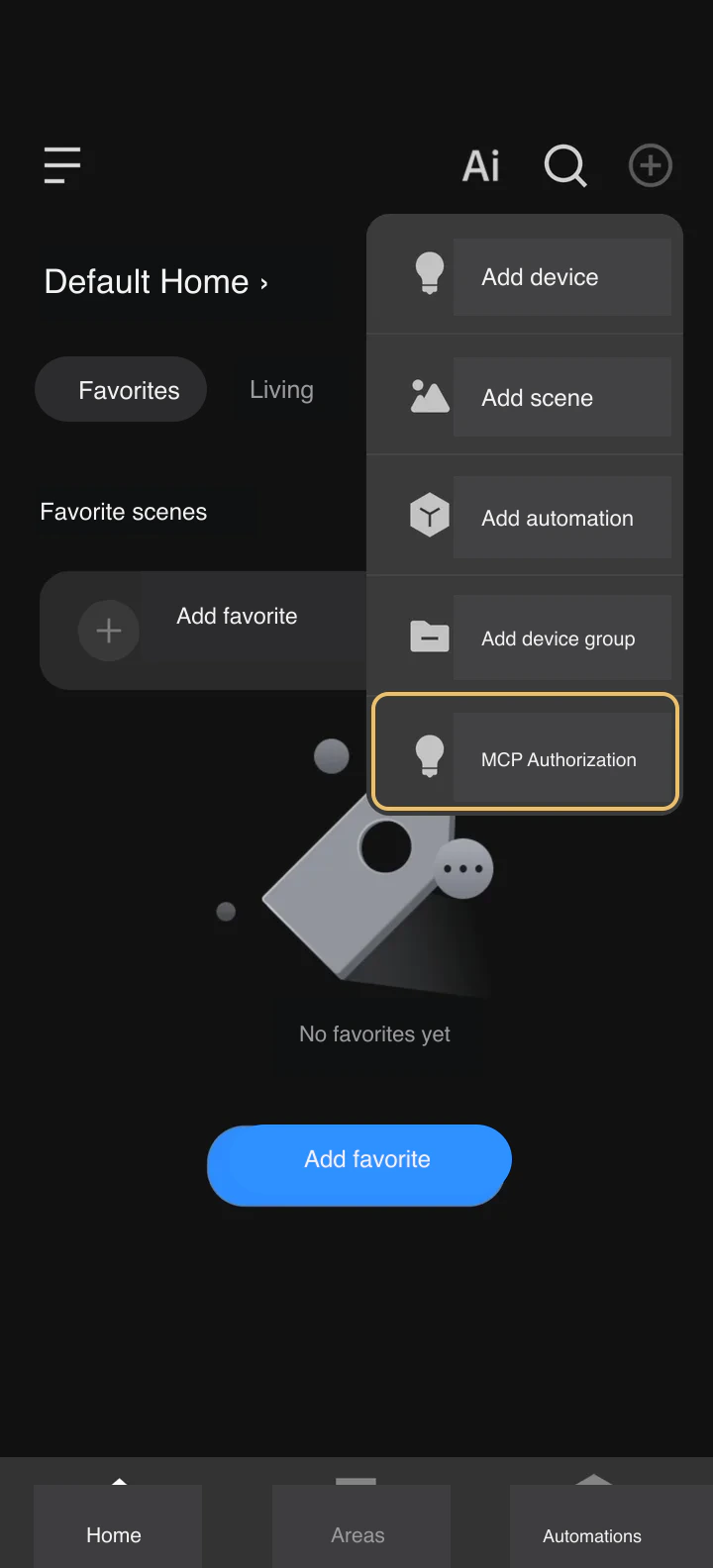
The terminal creates a compact QR for the chosen account region. The user opens MCP Authorization in the Yeelight Pro app and confirms. The recording contains no real QR code, home name, or credential.
Treat the QR as temporary authorization. Do not forward screenshots, tokens, cookies, or QR results.
You are done whenThe terminal confirms that credentials were saved for the correct region.
If it did not workRun the same command again if the QR expires. Authentication failure or an empty home list often means the selected region is wrong.
Run `home select` with no identifier. The terminal lists accessible home names and accepts a number or full name. Yeelight Home stores the internal House ID for later commands.
yeelight-home home selectyeelight-home home select
Preview the command flow in your browser; nothing runs locally or touches a device.
yeelight-home auth status --jsonyeelight-home auth status --json
Preview the command flow in your browser; nothing runs locally or touches a device.
You are done whenThe terminal confirms the selected home. Most later commands no longer need home information.
If it did not workRun the command in a real Terminal or PowerShell window if it says an interactive terminal is required. An empty list usually means the region or app permission is wrong.
`yeelight-home home select --house-id <id>` remains available for scripts. Ordinary users should use the name-based interactive path.
Run doctor, then read rooms and devices. These commands were verified against a signed-in home. They do not control a light or modify the home.
yeelight-home doctor --jsonyeelight-home doctor --json
Preview the command flow in your browser; nothing runs locally or touches a device.
yeelight-home room list --jsonyeelight-home room list --json
Preview the command flow in your browser; nothing runs locally or touches a device.
yeelight-home device list --jsonyeelight-home device list --json
Preview the command flow in your browser; nothing runs locally or touches a device.
You are done whenDoctor reports `ok`, and both list commands report `success` with real content from the selected home.
If it did not workFollow doctor remediations for warnings. Reauthorize and choose the home again when reads fail. One device lacking readable state does not invalidate a successful room and device list.
Yeelight Home works for AI and direct human use. The console guides you through homes, rooms, devices, and scenes and asks again before light or scene execution, so you do not write complex parameters.
yeelight-home menuyeelight-home menu
Preview the command flow in your browser; nothing runs locally or touches a device.
yeelight-home product search --keyword skylight --jsonyeelight-home product search --keyword skylight --json
Preview the command flow in your browser; nothing runs locally or touches a device.
Use the Yeelight Home CLI already installed on my computer. Read the current rooms, devices, scenes, and automations and explain the home's smart-lighting capabilities in everyday language. Do not control a device or change the home yet.
All four operations are read-only; the AI does not need the QR, token, or device IDs. Explore AI's handling path in your browser; it does not connect to your home.
Begin with reads or previews. Confirm the home, room, and target before actual control; perform home-management changes only after understanding their impact.
You are done whenAI returns a real home summary, or the console shows current home resources. Product search also returns real reference material without writing to the home.
If it did not workKeep the phrase 'use the Yeelight Home CLI on my computer' if AI does not know the tool. Continue to the Skill guide for complete Yeelight rules, or the Yeelight MCP guide for standard MCP access.
Start with three to five easy examples. Every sentence is ready to send to your AI.
Use the Yeelight Home CLI on this computer. Summarize the current rooms, devices, scenes, and automations in everyday language. Read only.
What you will seeA real home summary with zero writes.Use the local Yeelight Home CLI to read the living-room lights, groups, and scenes. Do not control anything.
What you will seeA clear list of real living-room resources.Use the local Yeelight Home CLI to preview turning on the living-room lights and tell me which lights would change. Do not execute yet.
What you will seeA dry-run preview with unchanged devices.Use the local Yeelight Home CLI to read my scenes and suggest one for watching TV at night. Do not execute it.
What you will seeA recommendation from scenes that actually exist in this home.Use Yeelight Home product knowledge to search for a skylight panel and explain where it fits in plain language.
What you will seeProduct information clearly separated from installed devices.Use the local Yeelight Home CLI to list automations read-only, group them by room, and show which are enabled.
What you will seeAutomation state organized by room without enabling or changing anything.Use the local Yeelight Home CLI to inspect the current gateway summary and diagnostics. Do not control devices.
What you will seeGateway capability and recovery guidance based on real results.No. It installs Yeelight Home CLI, authorizes it, and verifies the home. Continue to the Skill guide for full Yeelight rules or the Yeelight MCP guide for standard MCP access.
No. A supported Node.js LTS installation includes both. Use the linked computer environment guide if any of the three version checks fail.
In mainland China use `npm install --global yeelight-home --registry=https://registry.npmmirror.com`. That registry applies only to this command.
Close software holding npm files and confirm Node.js was installed normally for this user. Do not add sudo blindly. Reopen PowerShell on Windows or inspect `npm prefix --global` on macOS.
Reopen Terminal or PowerShell to refresh PATH. Inspect `npm prefix --global` and `npm root --global`; doctor also reports actual paths and remediations.
No. Use `cn` for mainland China, `sg` for Singapore, `us` for the United States, and `eu` for Europe. A wrong region often causes authorization failure or an empty home list.
The default is compact. Add `--qr-size normal` or `--qr-size large`. You can also add `--qr-png <path>` to create a local PNG; never forward it.
Press Ctrl+C and rerun the command for the same region. Confirm the phone completed MCP Authorization rather than only opening the camera.
It is running in a background or non-interactive script. Open a real Terminal or PowerShell window and run the command directly.
An old terminal may resolve a different copy. Upgrade with `npm install --global yeelight-home@latest`, reopen the terminal, and follow doctor remediation with `command -v yeelight-home` or `Get-Command yeelight-home`.
Not necessarily. It may be offline, unbound, or expose no readable property. Use successful doctor, room list, and device list as the first installation gate, then diagnose that device separately.
Reading rooms and devices usually does not. Creating, deleting, member management, and some configuration are higher-impact actions and require a home administrator.
Not for this guide. The Yeelight Home CLI runs directly. Later Skill or MCP setup lets the relevant client invoke it when needed.
Get practical setup help, exchange ideas, and follow what is next for Yeelight AI.
Meet other Yeelight AI users and get help with your setup.
Scan with WhatsApp or open the group directly.